Japan travel · Call translation
Can your iPhone translate a call to Japan?
Short answer: yes. Japanese is on Apple's supported list for Live Translation in the Phone app. But it needs a particular iPhone, a particular language setting, and a supported region — and there are four common situations where it still leaves you stuck. Here's the honest version, checked against Apple's own documentation.
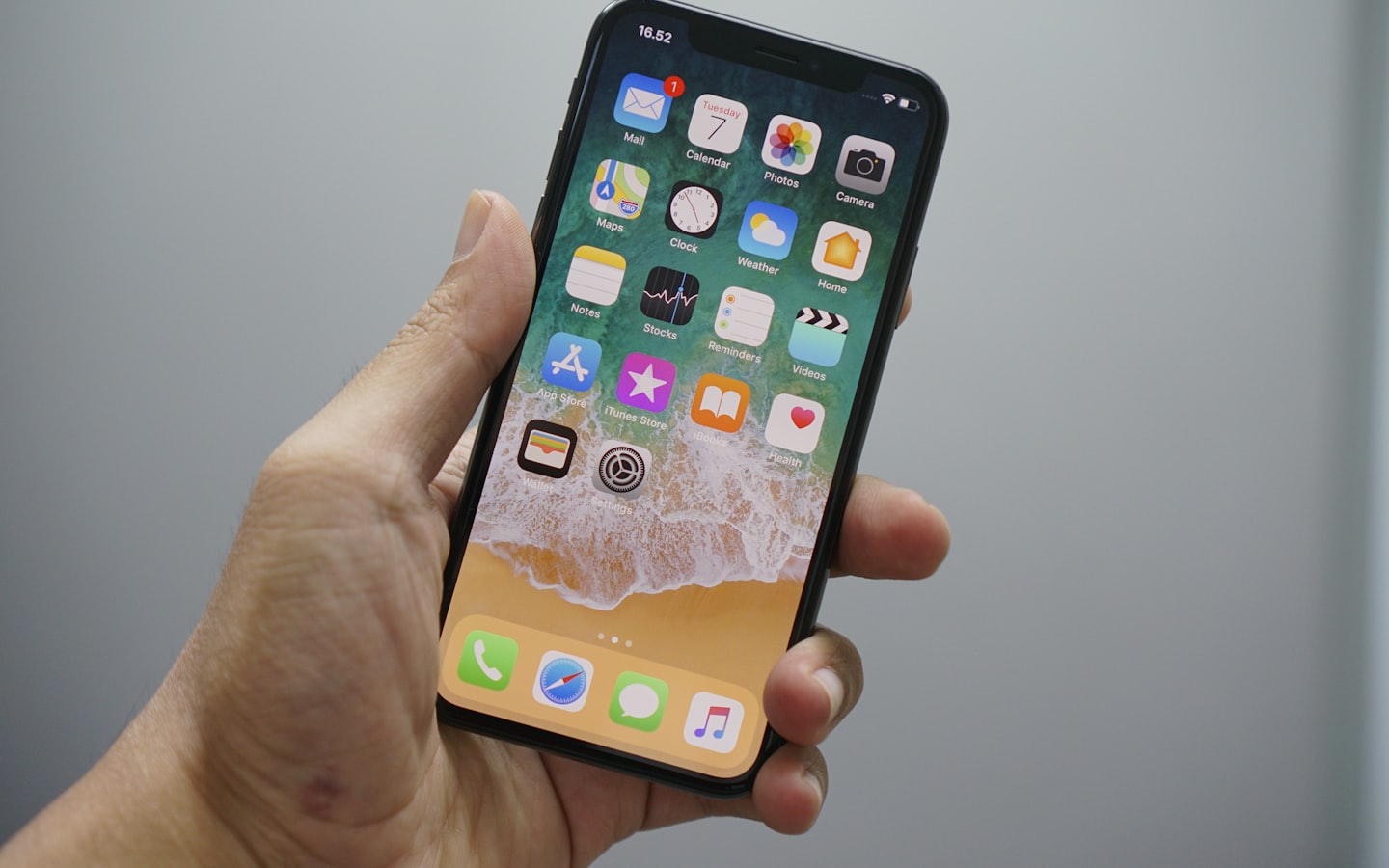
If you're going to Japan and you've heard your iPhone can now translate calls, the useful question isn't whether the feature exists — it's whether it will be there at the moment you need it. Booking a ryokan, chasing a delivery, calling a clinic: these are the calls where "it depends on your handset" turns into a real problem. So here is what Apple's Live Translation actually does on a phone call, what it needs from you, and where it runs out.
The short answer
Yes — Apple lists Japanese among the languages Live Translation supports in the Phone app. It runs on your iPhone, translates both directions out loud, and the person you call needs nothing at all. It's free and it's good. The catch is that all of that lives on your recent iPhone: it needs an Apple Intelligence device, your device and Siri language set to a supported language, and a region where the feature is available. Miss any one of those and there's simply nothing to turn on.
What you need
A recent iPhone
Apple Intelligence runs on iPhone 15 Pro models, and iPhone 16 or later. An iPhone 14, an SE, or any Android has no version of this. You also need iOS 18.1 or later and about 7 GB free for the on-device models.
Matching language settings
The one most people trip on: your device language and Siri language must be set to the same supported language. If your phone's interface is in a language Apple Intelligence doesn't cover, the whole feature stays switched off — not just the translation.
A supported language pair and region
For calls, Apple lists Chinese (Mandarin, Simplified and Traditional), English (UK and US), French (France), German (Germany), Italian, Japanese, Korean, Portuguese (Brazil) and Spanish (Spain). Simplified Chinese is not available in mainland China. Availability still varies by region, so check before you rely on it.
How to turn it on, mid-call
There's no setting to arm in advance — you start the call normally and switch translation on once you're connected.
- Make the call from the Phone app as usual.
- During the call, tap More, then Live Translation.
- If the language you want isn't already picked, tap Choose Language and select it. If those models aren't downloaded yet, this takes a few minutes — so do it before you're standing outside a closed restaurant.
- Tap Start Translation.
Two things happen that are worth knowing before you're on a live call with a stranger. First, if you weren't already on speaker or headphones, the call switches to speaker automatically — fine in a hotel room, less fine on a quiet train. Second, starting translation alerts both parties that the call is being translated; it isn't something that happens invisibly on the other end.
What the other person experiences
Nothing to install, nothing to set up. Because the translation runs on your iPhone, the person you're calling can be on any phone at all — an Android, an old handset, a restaurant's landline. As you speak they hear a spoken translation of what you said, their reply comes back translated, and you can read a transcription on screen. Apple also notes that Live Translation in the Phone app runs entirely on device, so the audio isn't being shipped somewhere to be processed.
This part is genuinely well built, and if it covers your call, use it. It's free and it's already on your phone.
Four situations where it still can't help you
- Your iPhone isn't new enough. iPhone 15 Pro or iPhone 16 and later. An iPhone 13 in your pocket is an iPhone 13 in Kyoto.
- Your phone's language isn't one Apple covers. Device and Siri language have to match a supported language. Travellers whose phones run in Thai, Hindi, Indonesian or another uncovered language can't switch Apple Intelligence on at all — and changing your entire phone's interface language for one call is a poor trade.
- You're not calling from your own iPhone. A borrowed phone, the hotel's front-desk line, an office landline, or a spare travel handset — there's no app to open and no account to log into. The feature is tied to the device, not to you.
- They need to reach you back. Live Translation covers the call you're on and ends when it does. It doesn't leave you a number a restaurant can ring back, and it can't help with a confirmation text.
What to do in each one
Not an Apple Intelligence iPhone — or the wrong language setting
If you're on Android, the equivalent features are worth checking instead — see Samsung Live Translate and Google's translation options. Your carrier may also offer call translation: what carriers currently do.
They need to reach you afterwards
This is a separate wall, and a tall one in Japan — plenty of places want a local number before they'll take a booking. We wrote up what actually works and what doesn't: the Japanese phone-number wall.
The phone you're calling from isn't yours
This one has no good answer today. Every on-device feature — Apple's, Samsung's, Google's — assumes the translating phone is the phone you own. Borrow a handset or pick up a hotel landline and you're back to no translation at all. It's the gap Yovoca is being built for; there's more on that below.
Where that leaves Yovoca
Yovoca is a call layer that doesn't live on a handset: you dial, a translator is on the line, and what makes it work is the phone network rather than the phone. That's the third gap above — the borrowed phone, the hotel landline, the travel handset that isn't an Apple Intelligence device.
To be straight about where that is today: public dialling isn't open yet. What you can do right now is call the demo line below and hear the translation happen on a real phone call — it's one-way, English in and Japanese out, and it's there so you can judge the quality yourself rather than take our word for it. Two-way calls you place yourself are what we're building toward. We don't give you a Japanese number, and we don't promise to clear SMS verification walls.
Hear it live +1 (888) 885-5228 Say a sentence in English — hear it come back in Japanese, live on a real phone line. Free demo · about 2 minutes · no app, no signup · still in testing, may not connect from every countryThe gap that's left
When the phone isn't yours, there's nothing to switch on.
Apple's feature is good, and where it reaches we'll tell you to use it. It reaches your recent iPhone. Yovoca is being built for the calls that happen on some other phone — and to carry your account rather than your handset. Join the list and we'll tell you when calls open up.
One email when your line is ready. No spam. By joining, you agree to the Terms and Privacy Policy.
Frequently asked
Does iPhone Live Translation work in Japanese on phone calls?
Yes. Apple lists Japanese among the languages supported for Live Translation in Phone and FaceTime, alongside Chinese (Mandarin, Simplified and Traditional), English (UK and US), French (France), German (Germany), Italian, Korean, Portuguese (Brazil) and Spanish (Spain). Apple changes these lists over time, and availability varies by region, so check Apple's current feature-availability page before you count on it for a trip.
Which iPhones support Live Translation?
It needs Apple Intelligence, which runs on iPhone 15 Pro models and iPhone 16 or later, with iOS 18.1 or later and roughly 7 GB of free storage for the on-device models. Older iPhones and Android phones don't have it.
Does the person I call need an iPhone or an app?
No. The translation runs on your iPhone, so the other side can be on any phone including a landline — they hear a spoken translation of what you say and their reply is translated back. Note that when you start translation, Apple alerts both parties that the call is being translated.
Why is Live Translation missing from my call?
The most common reasons are that your iPhone isn't an Apple Intelligence model, that Apple Intelligence isn't turned on in Settings, that your device language and Siri language aren't set to the same supported language, or that the language models haven't finished downloading. Feature availability also varies by region.
What if I'm not calling from my own iPhone?
Then there's nothing to switch on. Live Translation is tied to the device, so a borrowed phone, a hotel-room landline, or a spare travel handset gets you no translation. That gap is what Yovoca is being built for; today you can try our one-way demo line to hear how the translation sounds, but public dialling isn't open yet.
Sources checked on 2026-07-28: Apple — iOS and iPadOS 26 Feature Availability (call-translation language list) · Apple — How to get Apple Intelligence (device, storage and language requirements) · Apple — Use Live Translation on iPhone (in-call steps, speaker behaviour, both-party alert, on-device processing). Apple updates these pages; we recheck this guide when it changes.